Sending an email
Sending an email
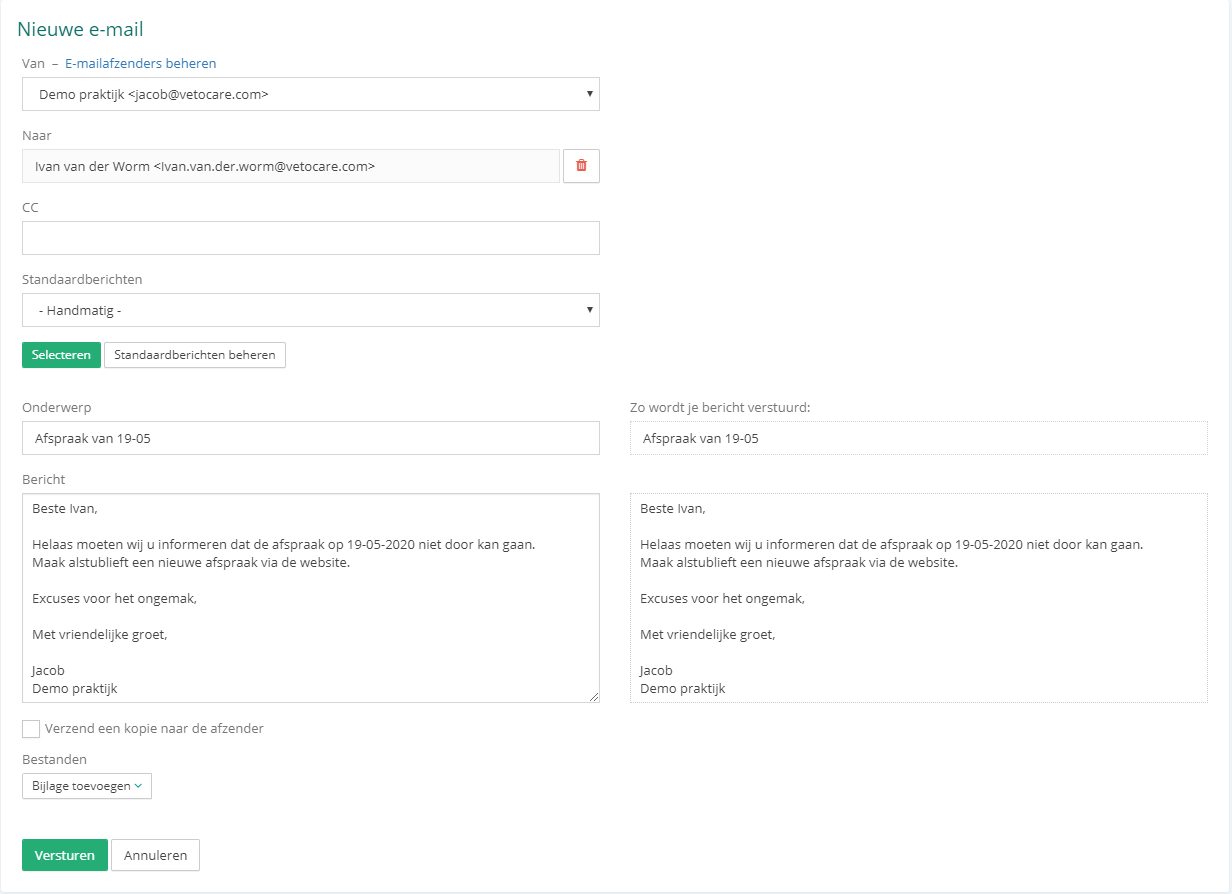
To stay in touch with your clients, you can send emails via Vetocare. You can also add attachments to these emails in Vetocare. In addition, you can create standard emails so that you can send emails quickly and consistently. To send an email in Vetocare to a client or contact, navigate to the file of the relevant client or contact. Once there, click "Send email" at the top of the page. You will then see a screen where the recipient has already been set, but you can still change the recipient at any time. The sender is also shown here; this is the practice's email address. You can also optionally enter a CC recipient.
Below the CC field, under the subject, you can select a standard message. This means you do not have to enter the content of every email yourself. For more information about standard messages, see: Standard messages. Of course, you can also enter the text manually.
When composing an email, you can also add attachments. To do this, click the Add attachment button. You will then have the option to use a file from the patient records, practice files, or upload a file. When you choose patient records, a screen opens where you can select from, among other things, all reports, patient cards, and client cards.
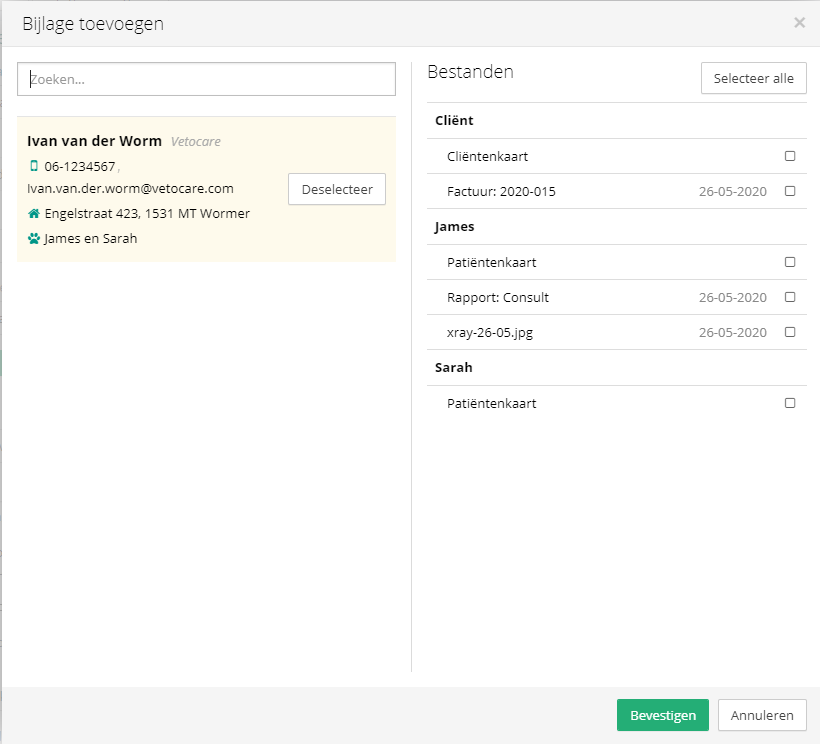
With the practice files option, you can select a practice file from a screen. With the last option, you can upload a file yourself. Once everything has been entered as required, the final step is simply to click Send, after which the email will be sent automatically.