

Add a client via an intake form
Add a client via an intake form
You can send a complete registration form to a client via an intake form. The client is then automatically added to your environment with the information they provide themselves.
An intake form can include, among other things, the following;
Client information - All the client's personal details, including their mobile number, which is entered separately from their phone number. This is the same screen you would see when adding a client in the usual way. The client enters their address in separate address fields with suggestions; see Entering or updating an address. The client's name and email address are filled in when the intake form is created and cannot be changed using the form.
You can also choose whether to add animals directly as part of the intake form. The client can then add up to 10 different animals. If you select this option when creating the intake form, a report can also be added automatically for each animal. For example, you can include an anamnesis form with fields that aren't available in the standard form.
Animal information - All information about the animal. This is the same screen you would see when adding an animal in the usual way.
Report per animal - If selected, a report is added for each animal as part of the intake. These reports contain exactly the same fields as those specified in the template.
At the end of the intake, the client can always add extra information if they have any additional details to provide.
A client who is still completing the intake is, despite the

label, fully available as a regular client. This means you can create appointments, reports, and invoices in this client's name as usual.
Create an intake form
To create an intake form, go to 'Clients' in the menu. There are two buttons at the top left: 'Add client' and 'Via intake'. Use the second button to create an intake form.
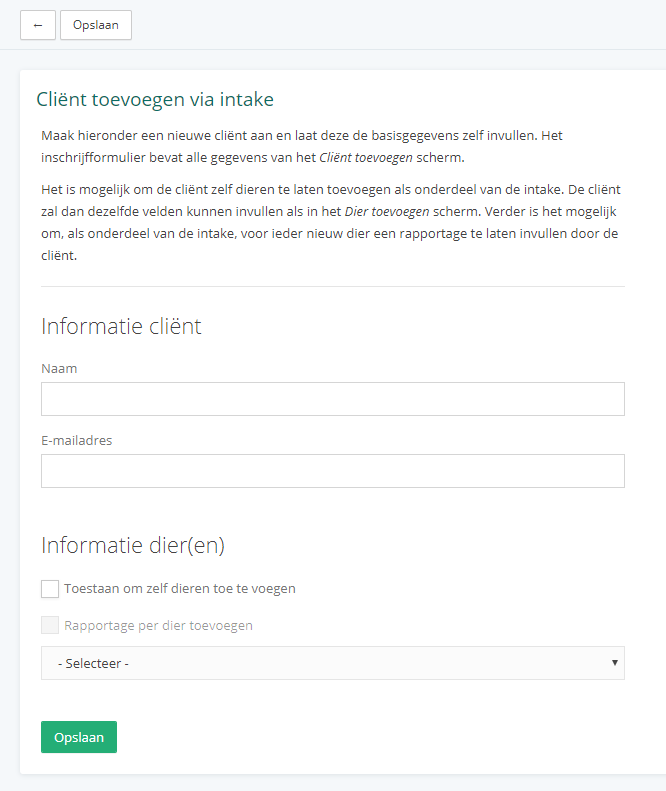
Here you can select everything you need for your intake form. A name and email address are required because they are used to send the intake form.
Once you've filled everything in and clicked 'Save', a screen will appear where you can choose how to send the intake form.
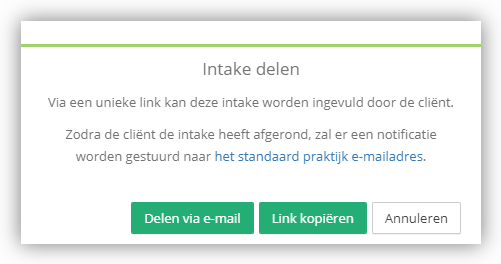
When you share it, you'll receive two important things: a unique link to the intake form and a corresponding personal code. The client needs both to fill in the intake forms. Vetocare remembers the personal code for each intake, so the client doesn't have to enter it again at every step.
Terms and consent
The intake form can include a checkbox for the client to accept the terms and conditions. Set this up as a consent under 'Settings → General → Terms and consent'.
Under 'Visible for', select 'Client (Intake)' and set 'Required' to 'Yes' if the client must accept the terms before submitting the intake. Set the text next to the checkbox under 'Text next to checkbox'.
For the client, this appears as a separate step called 'Terms and consent' in the intake, where they can read the terms and tick the checkbox.