

Add an appointment reminder
Add an appointment reminder
You can help a client remember an appointment with appointment reminders. These automatically send an email to the client before the appointment, so they know that an appointment is approaching.
To add a reminder to an appointment, select the appointment to which you want to add a reminder from the calendar.
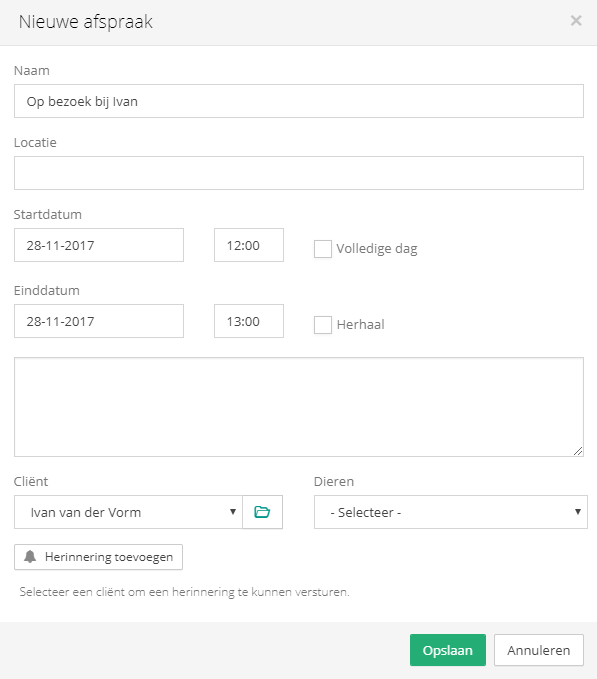
Below the client's name is the "Add reminder" button. Use this button to open the screen for adding a reminder to the appointment.
The button is only available when the appointment has a client or is a request. When you edit a recurring appointment, the reminder options are not displayed.
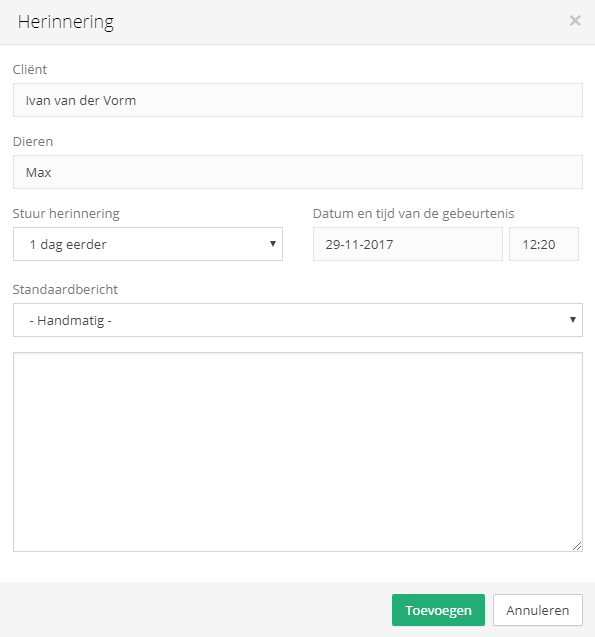
There are several fields when setting up an appointment reminder:
Client - The client associated with the appointment. This field is pre-filled and cannot be edited.
Animals - The animals associated with the client. This field is pre-filled and cannot be edited.
Send reminder - How long before the appointment the reminder is sent to the client, for example 1 day earlier or 1 hour earlier.
Default message - Select a saved email template for the reminder. Choose from relevant or general templates, or set up the message manually.
Subject - The subject of the email.
Message - The content of the email.
The date and time of the event are automatically taken from the appointment. Click "This is how your message will be sent" to see a preview of the email.
In the reminder screen, click "Add" (or "Save" for an existing reminder). The reminder is saved when you then save the appointment with "Save".
To send a reminder, a sender name and practice email address are required, and the client must have an email address. Set these up in the email settings.
You can also set up automatic reminders for new appointments via Calendar > Settings > Appointment settings.