

Orders
Orders
In Vetocare, you can create orders and add them to your inventory. To create an order, click the arrow in the menu next to "Products". Then select the "Orders" option. You will now see an overview of active orders and, if applicable, order suggestions based on the current stock compared with the minimum stock level. At the top of the screen, there are two buttons: "New empty order" and "Order history". Clicking the order history button displays a table of completed orders. To create a new order, click "New empty order".
You will now see a screen where you first select the supplier. A supplier is a contact in your address book. You can then add products using the "Add product" button.
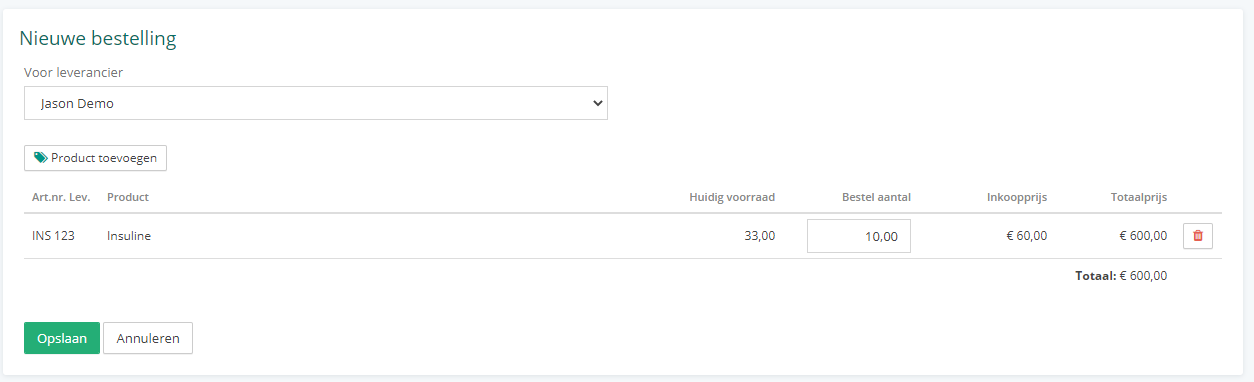
After selecting the supplier and products, click "Save" to create the order.
The order is now active and will appear in the order list. You can export the order list using the "Export" button at the top of the screen. If some or all of the ordered products arrive, you can receive them using the "Receive order" button. This opens a screen where you can fill in several fields. If everything has arrived, you can mark the order as completed using the checkbox. If the order is received in parts, you can receive it in stages by adjusting the "Quantity received" field.
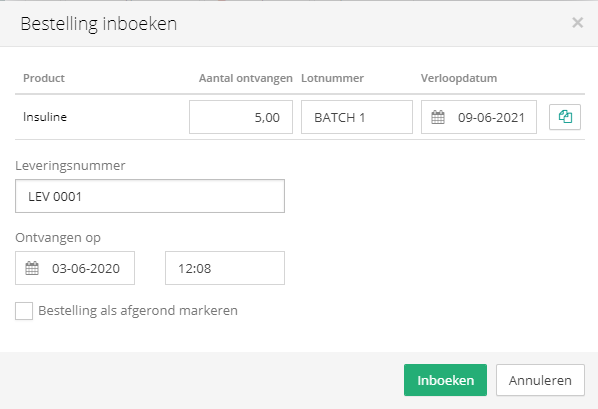
Do not forget to click "Receive". A row will then be added to the "Receipts" table.
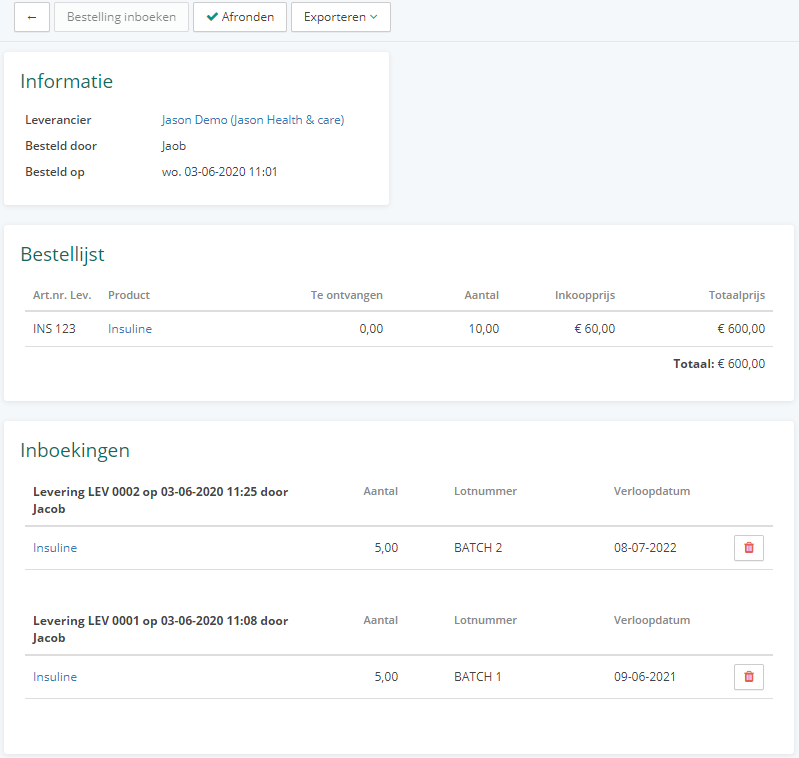
If all products in the order have arrived in full, you can complete the order using the "Complete" button at the top of the screen. After this, the order can no longer be modified.