Using colors
Using colors
If your practice has a full schedule, it can quickly become difficult to keep track of everything. In Vetocare, there are two tools to make the schedule clear again. For example, you could split the schedule into multiple calendars. For more information on how to create multiple calendars, see: Manage calendars. Another option is to use colors, but of course it is also possible to use both tools.
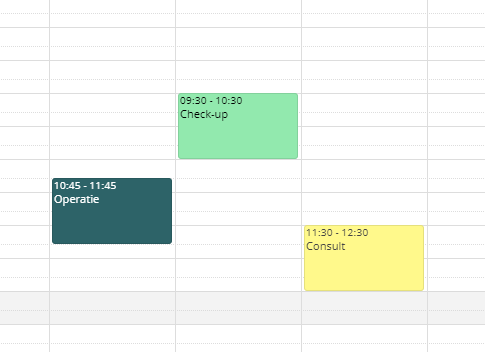
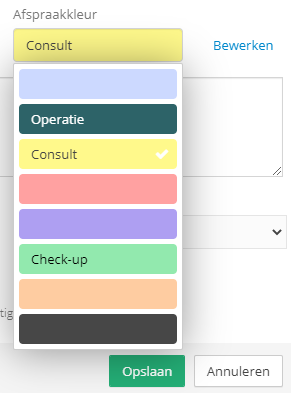
To apply colors, go to the calendar and create a new event or select an existing one. Here, you will find the "Appointment color" field. Clicking it gives you a choice of several colors. Clicking a color selects it. When you save the event, it will appear in this color in the calendar. You can also add a note to each color, so you can define a separate color for each type of appointment, for example, and specify the type in the note. To edit the notes for the colors, click "Edit" next to the appointment color field. Enter the note in the text field next to the color of your choice, and do not forget to click "Save".