Customize branding
Customize branding
By customizing your branding, PDF files and printouts can use a layout that more closely matches the style of your own practice. For example, you can replace the default header with your own header and/or footer.
You can set up a custom branding style for each document type. For example, you can use a different layout for reports than for your letters.
To start customizing this branding style, go to Settings in your environment and then select 'Branding' under the Letters heading. On this screen, you will see all branding styles that have already been created, as well as the default branding style maintained by the system. If you want to customize the default branding style, you will need to recreate it manually.
When you add a branding style or open an existing one, you will see a screen containing several fields.
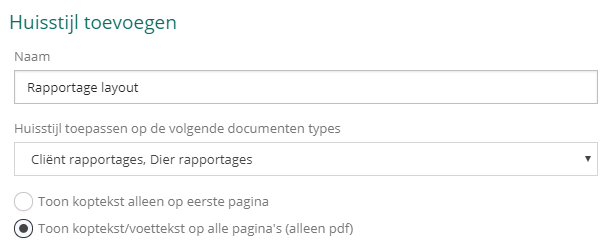
You can use the first field, 'Name', to give the style a recognizable name so that it can be identified easily. For example, you can use the name of your practice or the types of documents this style will be used for.
In the second field, you can choose which document types this style will be applied to. A particular document type can have only one style applied to it. If you select a document type here that already has another branding style, it will be overwritten.
Next, you can determine how and where your branding style is displayed on the document. The following options are available:
- Show header on first page only
- Show header/footer on all pages (PDF only)
As described for the second option, the header and footer will only be visible when the document is exported as a PDF file.
Below these fields, you will see your header and/or footer displayed as it will ultimately be used. For a new branding style, this will initially be empty.
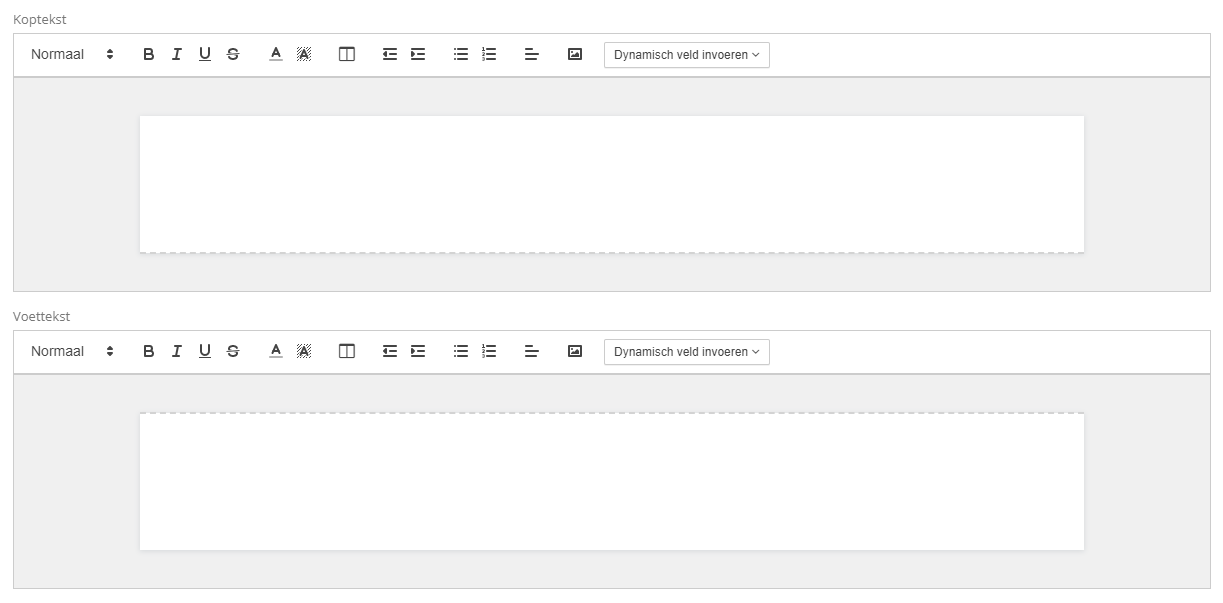
Above your header and/or footer, you will see a toolbar with various formatting options that you can use. Some important options include making text bold, italic, or underlined, adding a color, inserting photos, and adding dynamic fields.
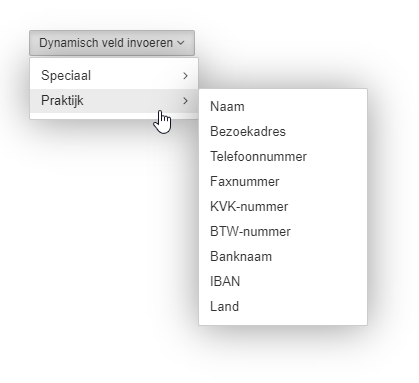
Dynamic fields are pieces of text that you can add to the style and that subsequently automatically retrieve data from, for example, your practice. If this data changes, it will be updated automatically in future documents.