

Shared reports
Shared reports
You can have your clients fill in your reports. This feature allows you to create a new form, optionally fill in part of it in advance, and then send it to your client so they can complete the remaining information.
This can be useful, for example, if information about the client or their animals is missing, if a lot of information needs to be requested and doing so in a phone call would be difficult, or if information is needed that your client may need more time to find out.
Note: If the intention is only to show a report, we recommend exporting the report instead of sharing it, to prevent unnecessary changes to the report.
Sharing a report
If you want to have a new report filled in, you must create it first. You can optionally leave it empty or fill in the information that is already known in advance.
In a report, you will see a button in the top-left corner labelled 'Have client fill in'. Clicking it starts the process of sharing the report. Sharing is always done via a unique link.
You will then be given two options.
The first option is to send the link to the client by email. With this option, you will be redirected to the Send email screen, where a standard piece of text containing this link is already filled in.
The second option is to copy the link. With this option, a small window will appear containing the generated link, which you can then copy and send to the client manually.
When this unique link is opened, the client sees the same form that you see.
If you have meanwhile modified the report while the client was still filling it in, the client cannot save the report. The message "This report has meanwhile been modified by the practice" refers to the "Open latest version" option: the client opens the report in its current version in a new tab and can continue there. Saving a copy is not possible for clients.
Managing a shared report
If you open a report from Vetocare that is currently being shared, a message containing information about the sharing is displayed at the top of the form.
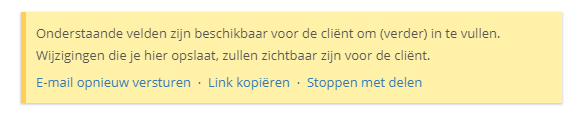
If the client has not yet submitted this report, the following actions will be available:
Resend email - This gives you the option to resend the generated link to the client, for example as a reminder that this report still needs to be completed.
Copy link - This opens the window with the generated link to the shared report again.
Stop sharing - This stops sharing the report, and the existing link will no longer be accessible.
As soon as a report is submitted by the client, the practice's standard email address will receive an email and an Inbox notification will appear. In this case, the report still needs to be approved. Approving a report may, for example, mean that you have carried out your follow-up actions on it.
