

Animal identification template
Animal identification template
The Animal identification template determines how the animal is shown on invoices. You configure it on an outstanding invoice and can save it as the default for all subsequent invoices.
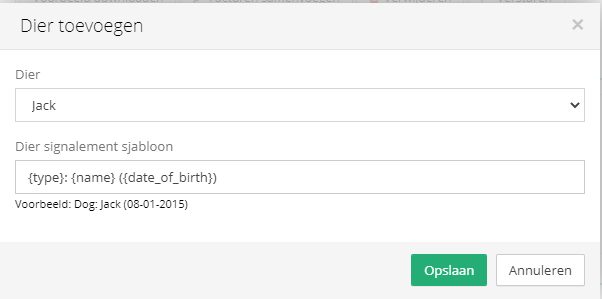
Adjusting the template on an invoice
You edit the template in the "Add animal" window of an outstanding invoice.
Open the outstanding invoice.
Click Add animal.
Under Animal, select the animal whose details you want to show on the invoice.
In the Animal identification template field, click the name of a field, for example Microchip number. The corresponding variable is inserted into the template and replaced with the animal's value after saving.
Add regular text where necessary, for example a space or comma between two variables.
Click Save. The animal is shown on this invoice using this format.
Unknown text between braces remains unchanged. Use the placeholders from the table below, not for example {naam} or {ras}: the correct placeholders are {name} and {breed}.
Variables
Click the name of a field to insert the variable into the template.
Field | Variable |
|---|---|
Animal species |
|
Name |
|
Breed / studbook |
|
Gender |
|
Color |
|
Date of birth |
|
Passport number |
|
Microchip number |
|
No. |
|
Insurer |
|
Policy number |
|
Save as default
Select Set as default template to save the template for all subsequent invoices. The option is in the same window, below the Animal identification template field. The default applies to the entire practice: this template is used for every new invoice to which you add an animal. Invoices that already have their own template retain that template.
Do not enter the microchip number manually in the template. An entered number is saved as regular text and will then appear literally on every subsequent invoice. Instead, use the Microchip number field: {chip} is replaced for each animal by that animal's microchip number.
A template saved as the default is used for all subsequent invoices. Make sure the template contains dynamic fields and not an actual microchip number.
After clicking Save, the animal will be shown in this format on invoices.
