

Appointment confirmations
Appointment confirmations
Vetocare allows you to create different appointment confirmations in advance, so you can quickly and easily use preconfigured appointment confirmations in the future. For example, you can create appointment confirmations for different situations, such as when you have multiple locations.
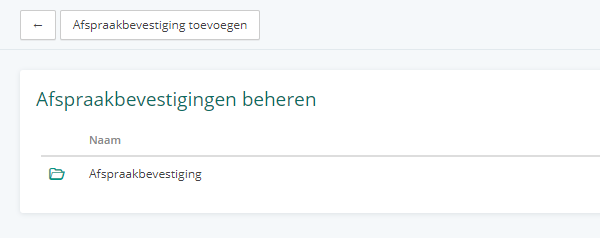
To create appointment confirmations, first navigate to 'Settings', then go to 'Appointment confirmations' under the 'Emails' heading.
When you create your Vetocare account, one example message is added automatically. You can customize or delete it as desired.
Add/edit an appointment confirmation
To add an appointment confirmation, use the 'Add appointment confirmation' button in the top left. To edit an appointment confirmation, click the appointment confirmation.
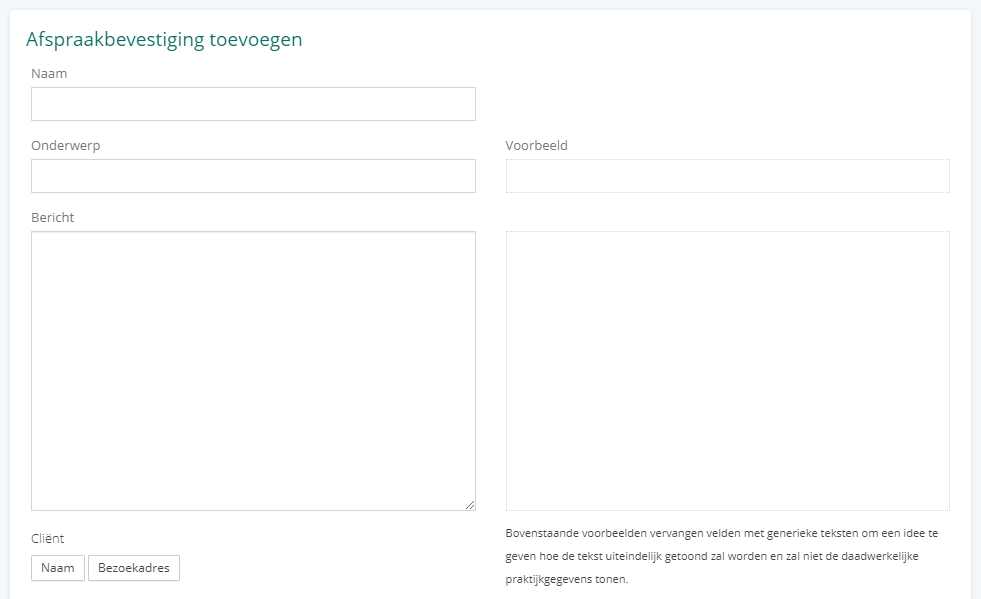
Here, you will be able to enter a name (so you can recognize the message yourself), an email subject, and the corresponding message.
On the left, you will see the standard message as you create it, with so-called tags such as {{CLIENT}}. On the right, you will see a preview of what the message could ultimately look like.
Below the message, you will find a large list of possible tags that you can enter in the message. These are then automatically replaced in the final email message.