

Consolidated invoices
Consolidated invoices
Invoices make it possible to invoice different products for each animal. Consolidated invoices take this a step further by allowing you to create one invoice for multiple animals belonging to a client, with different products assigned to those animals.
Adding products to animals
The first step in creating a consolidated invoice is adding products. This is done per animal, so you always know which products are assigned to each animal.
To do this, open the relevant client and then the relevant animal. The animal overview contains a 'Products' section. From this section, click the + button to add one or more products, along with the quantity and, if needed, an explanation.
Creating a consolidated invoice
Once you have added all products to the relevant animals, you can start creating a consolidated invoice. Go to the client's overview, and then open the 'Invoices' section. Here, you will find a button

which takes you to a new page.
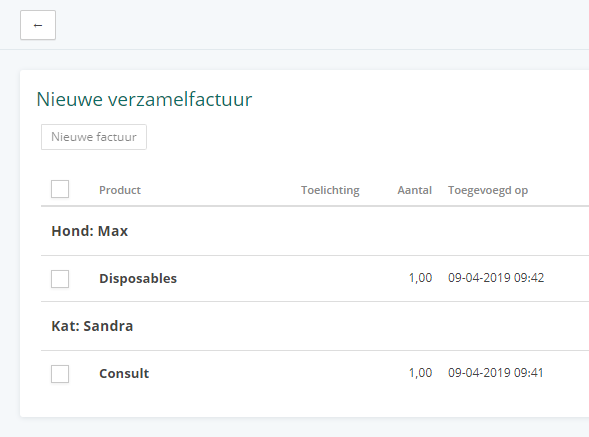
On this page, if products have been added, you will see a list of all animals and all products that have not yet been invoiced. Select what you want to add to your invoice, and then click 'New invoice' to create the new invoice.
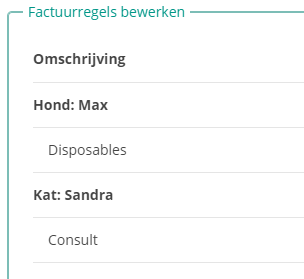
An invoice will then be created with the client selected and the products already added as invoice lines. You can optionally add extra lines manually or modify existing lines.
Treatment dates on the consolidated invoice
The treatment dates on a consolidated invoice come from the products you added to the animals; you do not enter them separately on the invoice page. Whether the dates are visible depends on the option selected under Invoice details when creating the invoice.
Group by date: the treatment dates are shown on the invoice. The invoice lines remain grouped by animal, and lines with a date are grouped under a date heading within that group.
Do not group by date: the lines are grouped only by animal, and the individual treatment dates are not shown on the invoice.
The default option comes from your practice's invoice settings, but you can choose the option for each consolidated invoice. The same option applies to the downloaded or printed version of the invoice.
Are the treatment dates missing from your consolidated invoice? Then Do not group by date was selected when the invoice was created. Create the invoice again and select Group by date under Invoice details.