

Animal products
Animal products
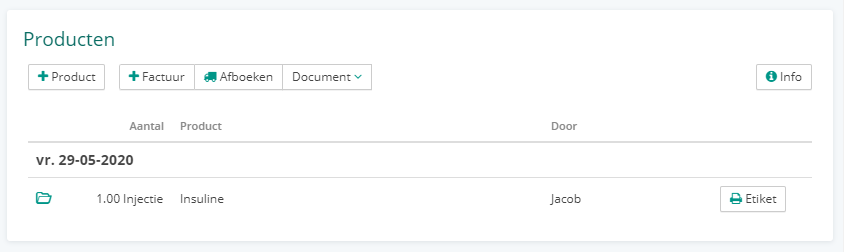
An animal's record contains all products administered to the animal. Here, you can perform various actions related to these products.
Add product
By clicking "+ Product", you can select products and add them to this animal. They will then appear here in the list.
Special products and workflows
When adding certain products, additional steps or automatic actions may follow. For details about these actions and their consequences, see the advanced articles:
Update sex after castration - what happens when you add a castration product.
Euthanasia: mark animal as deceased - what happens when you add an euthanasia product.
Workflows when adding products - automatically creating tasks, reminders, or inbox items.
Create invoice
By clicking "+ Invoice", you can select products for the animal and create an invoice for them. This means you can first add products to the animal and invoice them later.
Write off
The "Write off" button allows you to make stock adjustments for selected products. This means you can use this method to adjust products that have not been invoiced.
Create document
Using the "Document" button, you can create a logbook for selected products.
Info
The Info button provides additional information about the icons that may appear next to product lines. It also allows you to disable the Logbook function.
Print label
If a label printer has been configured and labels have been enabled for the product, you can print a label for a product using this button. You can still edit the text on the label before printing it.
Edit product line
Click a product line to edit it in the Edit product line editor. The editor brings together the product details, pricing and invoicing details, navigation between product lines, and the available actions in a single screen. You need product permissions to edit a line. You can delete the product line using the Delete button.
Product details
In the left section of the editor, you can edit the product details: Name, Registration number, Lot number, Date, By and Description.
Use the collapsible Prescription/use section to open the additional fields Dosage, Treatment duration, Withdrawal period, Indication, the Administration or Provision option, the cascade setting, and Notes. This section opens automatically when it already contains information.
Price & invoicing
In the right section of the editor, you can see Quantity, Unit price incl. VAT and Total incl. VAT. Open the Adjust price section to change the price.
Under Enter price as, choose whether you enter the price Incl. VAT or Excl. VAT. The price field then switches between Price (incl. VAT) and Price (excl. VAT). Under Price source, choose between Sales price and Purchase price, set the VAT group, and under Discount type and Discount, enter a discount as a Percentage or Amount. If the product has a fixed surcharge, you can select Apply fixed surcharge.
After changing the price, VAT rate, or discount, the price is recalculated automatically. Unit price incl. VAT and Total incl. VAT are updated accordingly. Use Restore original price to reset the price.
Locked prices
When a product is linked to an invoice or stock adjustment, the price fields are locked and read-only. The editor then displays: "Price fields are locked because this product is linked to an invoice or stock adjustment." You can no longer change the price, VAT group, or discount.
Save
Click Save to save the changes. The editor closes and the product list is refreshed.
Previous and Next
Use Previous and Next to go to the previous or next product line for the animal. These buttons only appear when there is more than one product line. Save your changes before moving to another line, or confirm the warning.
Warning about unsaved changes
When you have made changes and want to navigate to another line or close the editor without saving, the editor displays the warning "Unsaved changes": "There are unsaved changes. Do you want to save the changes and continue?" Choose Save to save and continue, or Don't save to continue without saving.
Print label in the editor
When your practice has a label printer configured, the editor contains the Print label button for printing a label for the product line. This button is only available on desktop, not on mobile.
Desktop and mobile
On desktop, the product details are on the left and the pricing and invoicing details are displayed alongside them on the right. On mobile, the two sections are stacked vertically and the price fields are shown at full width. On mobile, the Previous and Next buttons are available as arrows, and label printing is hidden.