

Managing templates
Managing templates
Reports can be created from scratch using templates. This allows you to create your own forms for your reports, such as an intake, examination, treatment, or anything else you can think of. Using different types of input fields, you can make your reports as comprehensive or as simple as you want.
These templates can be found under the 'Settings' menu button, under the 'Reports' heading.
When you created your Vetocare account, a standard template called 'Treatment' was already created. If you do not plan to use it, you can delete or modify it.
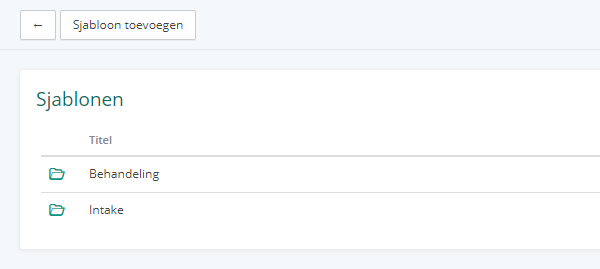
Creating a new template
When you view your list of templates, you will see an 'Add template' button in the top-left corner. When you click it, a new template will open with 2 standard input fields:
Created on - The date on which the form is completed. When filling out the form, this will be automatically set to the current date and time.
Attachments - Used to add attachments to the report when filling out the form.
The fields above are system fields and cannot be removed from the form. However, you can choose not to display them on the form.
Adding fields to the template
When modifying a template, you can create, move, or modify various input fields.
To add a new input field, click the 'Add input field' button. This will open a new screen with editable properties for this input field.
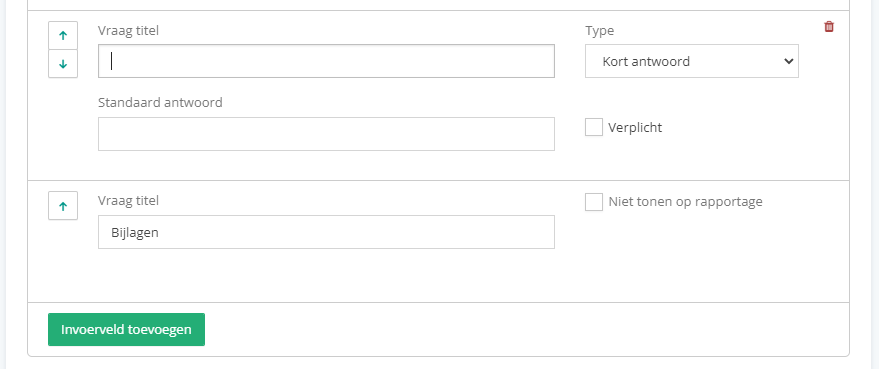
Each type of input field has a default name and type. The type indicates what kind of question it will be. There are several types of input fields:
Text - Open fields where you cannot predict the answer in advance.
• Short answer - An open question where you can enter only one line as the answer.
• Paragraph - An open question where you can enter multiple lines as the answer.
Choice fields - Fields with predefined answers where you only need to make a selection when filling out the form.
• Checkbox - A question where you can use a check mark to indicate whether something was or was not experienced, for example.
• Multiple choice - A question where you can enter multiple answers to choose from. Optionally, you can allow multiple answers to be selected when filling out the form.
• Dropdown menu - A question where you can enter multiple answers and select only one through a dropdown menu.
• Rating - A question where you can provide a rating from 1 to 5.
Visual - Not an input field itself, but it allows you to add extra formatting to the form, for example.
• Subtitle - A title that you can place between questions to keep different sections separate, for example.
Different types of input fields have different properties that you can modify. For example, the multiple-choice and dropdown-menu types allow you to enter the different choices.
Once a new input field has been created, you can move it by dragging it in the overview, or modify it by clicking it.
For more information about how these templates can be used, see Filling out reports