

Add a template letter
Add a template letter
If you often write letters that have a lot in common, you can create a template letter here. A template letter allows you to prepare a letter as much as possible in advance and use Dynamic fields to automatically fill in certain details when creating the letter itself.
To create or view a template letter, go to Settings in your environment and select ‘Manage template letters’ under the Letters section. This screen shows all template letters that have already been created, and you can immediately create a new template letter.
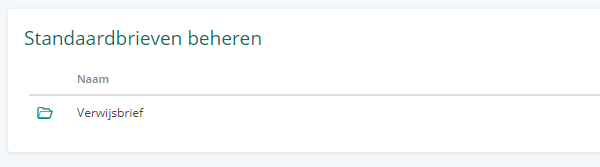
Once you have opened or created a template letter, you will see a field for a name. Enter a name that makes it easy for you to recognize which template letter it is, such as ‘Referral’.
Below this field, you will see your template letter as it will ultimately be used. For a new template letter, this will initially be empty.
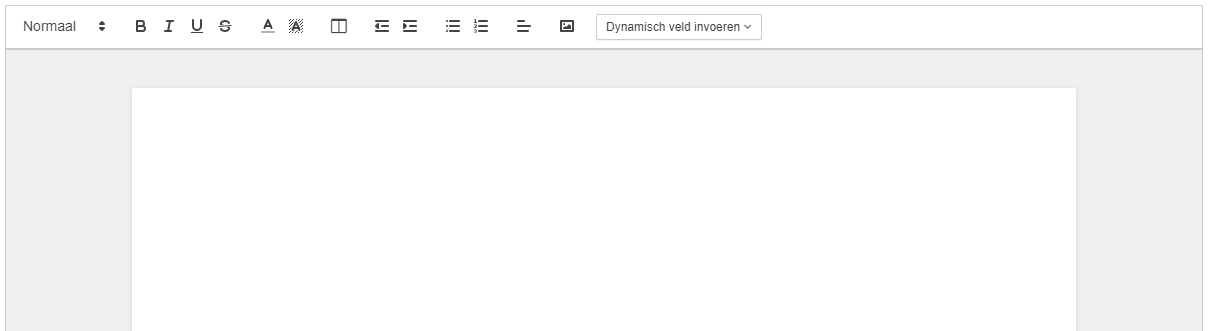
Above your template letter, you will see a toolbar with various formatting options that you can use. Some important options include making text bold, italic, or underlined, adding a color, inserting photos, and adding Dynamic fields.
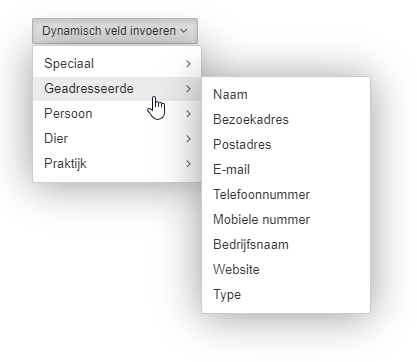
Dynamic fields are pieces of text that you can add to a letter and that automatically retrieve data about, for example, the client or their animal. This allows you to easily add details about the addressee or person concerned without having to know this information in advance.
Once your template letter is finished, you can save it and then use it directly to write letters