

Writing a letter
Writing a letter
It is possible to write letters to clients and contacts. You can format these entirely as you wish. You can then easily print these letters or forward them in PDF format.
Using letter templates, you can also create these types of letters in advance and have them automatically populated with data from the selected client using dynamic fields. For more information, see Add letter template.
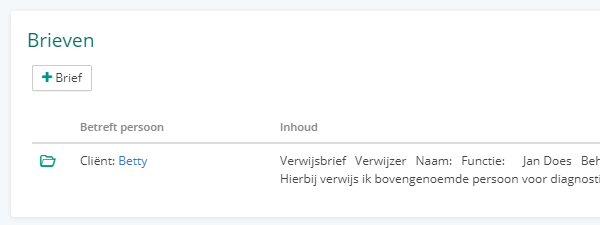
To start creating a letter, first select a client or contact to whom the letter will be addressed. This can be someone other than the person the letter is ultimately about. For this client or contact, there will be a section called 'Letters'. Here, you can see all letters addressed to this client or contact, with a button that allows you to write a new letter.
Once you have opened or created a letter, you will see various fields that can be completed. You can use the first field, Person, to indicate who the letter is about. You can also enter the same person as the Addressee. If this person is a client, you can optionally select a related animal as well. There is also a field for Letter templates; if any have been created, you can select them here.
Below these fields, you will see your letter as it will ultimately be printed. For a new letter, this will initially be blank.
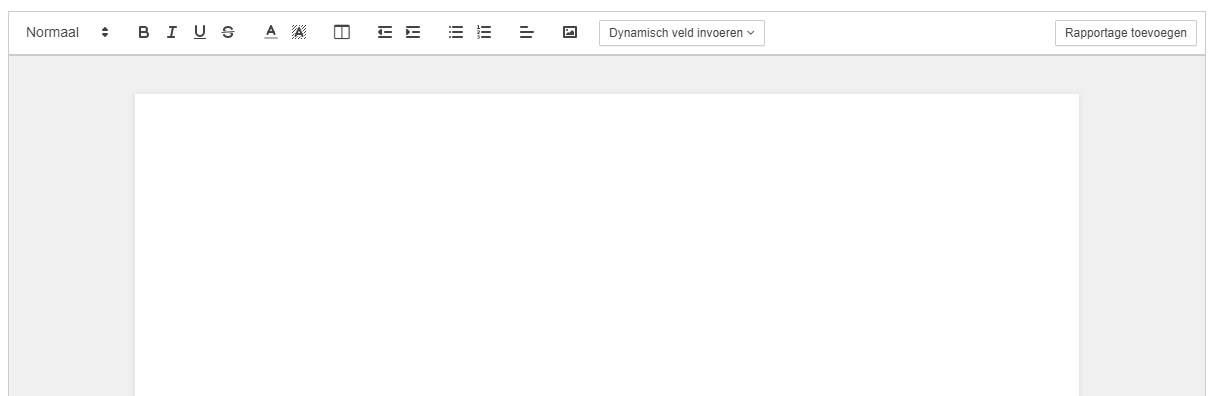
Above your letter, you will see a toolbar with various formatting options you can use. Some important options include making text bold, italic, or underlined, adding color, inserting photos, and adding dynamic fields.
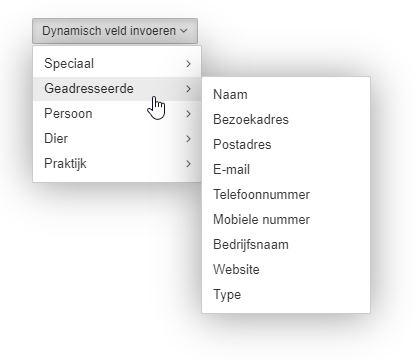
Dynamic fields are pieces of text that you can add to a letter, which then automatically retrieve data about, for example, the client or their animal. This allows you to easily add information to the letter without having to look it up elsewhere, and ensures that it is always up to date, even if you subsequently select a different client, for example.
Once your letter is complete and needs to be sent, you have several options:
- Save the letter as a PDF file. You can then print or forward it yourself.
- Add the letter to a new email. This creates an email message with a PDF file of the letter attached.
- Print the letter directly.