

Invite users
Only the owner and an administrator can invite and manage users. This is how you add a colleague to your Vetocare, so multiple people can access the same data.
Go to Settings → Subscription → Manage users. You will see an overview of the users in your Vetocare. Use the Invite user button to add a user.
Every user added to your Vetocare counts as an additional license. If you have already reached your limit, you can purchase a new license and then add a new user.
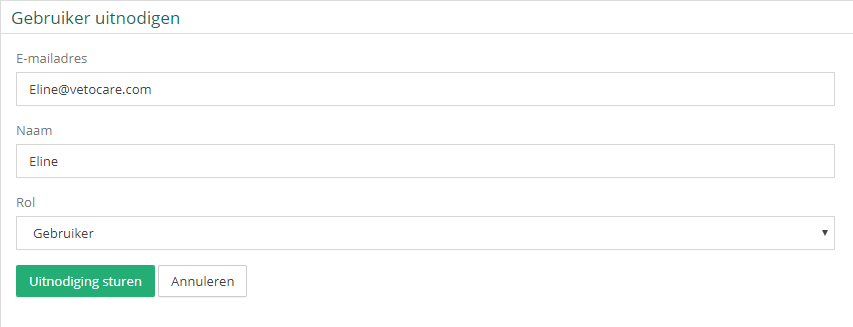
Enter the name and email address of the user you want to add. Then choose a role. See User roles for all available roles and their permissions.
Click Send invitation to send the invitation. An email will automatically be sent to the email address you provided.
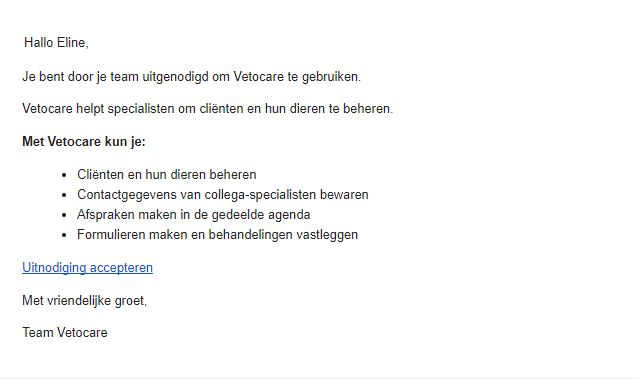
The invited user clicks Accept invitation in the email.
Finally, the invited user sets a password for their Vetocare account and clicks Accept invitation. This user is now a member of your Vetocare.