

Create a new invoice
Create a new invoice
To create an invoice in Vetocare, navigate to "Invoices" and select "Add invoice".
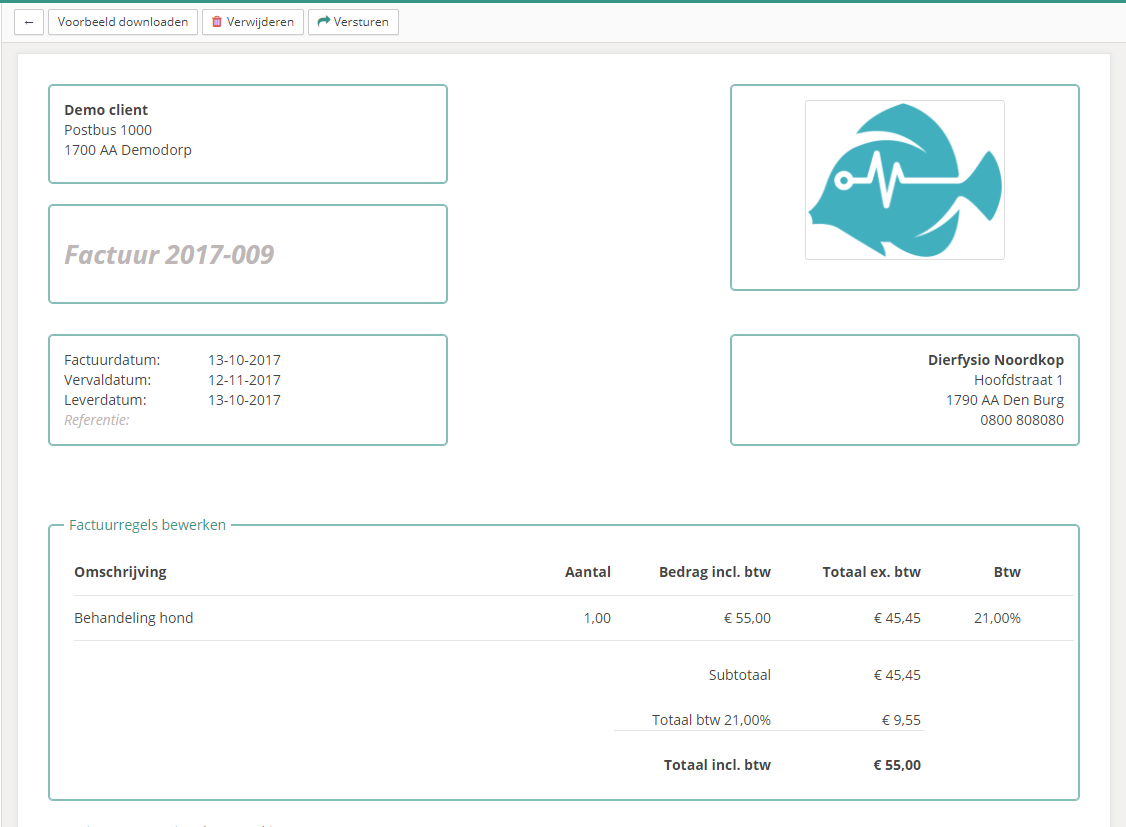
The invoice creation window will now open. It may seem like a lot, but it is actually quite manageable because much of the information is filled in automatically after the first invoice.
Edit practice details
Your practice details will appear here. The practice details will already be filled in automatically, provided they have been saved in your Vetocare beforehand. Otherwise, you can easily update them here.
Add client
This field contains the client for whom the invoice is intended. You can easily select the desired client from the list of existing clients.
The invoice will be sent to the client's email address (if this is the selected delivery method), so always make sure that customer contact information is up to date.
Invoice number
You can set an invoice number as the starting number once; Vetocare will then increment it automatically. An invoice number only becomes final once an invoice has the status "Sent". This prevents numbers from being skipped or used twice. In Vetocare, your invoice number will by default always begin with the current year, and the numbering will automatically start over the following year. You can also set the format yourself; see Invoice number format for more information.
Invoice date
This is the date on which the invoice was created. The invoice date is set to the current date by default and can be changed as desired.
Due date
The final date by which the customer must pay your invoice. This is set to 30 days after the current date by default. You can change the default payment term in your settings so that your preferred payment term is used by default in the future.
Delivery date
The date on which the products and/or services were delivered.
Reference
A reference that allows the customer to process the invoice more quickly and easily in their records. This is often not necessary, although you can add one if a customer requests it.
Logo
Here you can add your practice logo to the invoice. If a practice logo was previously saved in your practice settings, it will automatically appear on the invoice. Of course, you can still change it as desired. The configured logo will also automatically appear on subsequent invoices.
INVOICE LINES
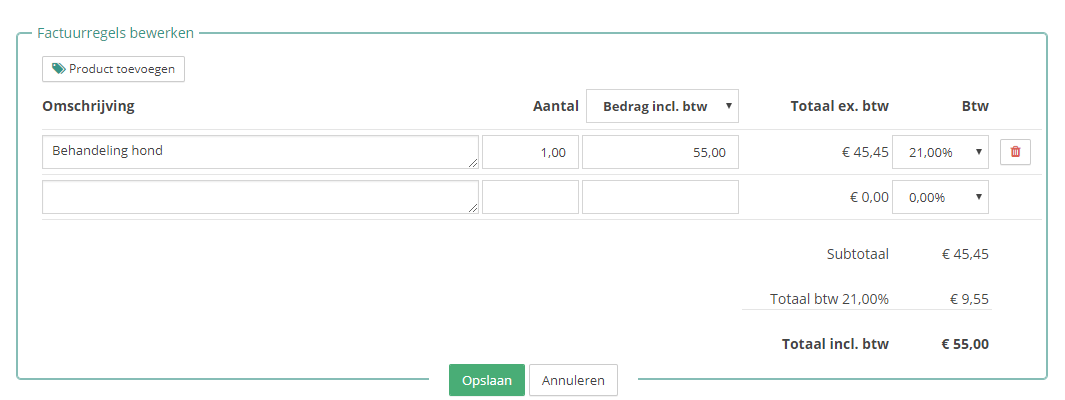
You have now reached the invoice lines, where you can add products, quantities, prices, and VAT rates. You can also have the inventory tracked in Vetocare adjusted automatically when the invoice is sent, saving you time when managing inventory.
Add product
This allows you to add a saved product to the invoice. When you choose the "Mutation" option, the entered quantity will be deducted from the inventory. The inventory is only deducted when the invoice is sent. This prevents inventory from being deducted incorrectly for draft invoices.
Description
Here you can describe exactly what is being charged to the customer, such as a tailored program or another service that does not involve inventory. If you have selected a saved product via add product, the description will be filled in with the name of the product you selected.
Quantity
The number of times the product/service was delivered. If you choose to adjust the inventory of an existing product (Mutation), the inventory will decrease by the quantity stated on the invoice.
VAT
Here you can enter the amount including or excluding VAT. When supplying private individuals, you may want to enter the price of your service directly including VAT. Vetocare will then automatically calculate the amount excluding VAT. If necessary, you can also apply another VAT rate that was previously saved in your Vetocare settings.
COMPLETE THE INVOICE
Your invoice is almost ready; the following steps are optional:
Optional note
Finally, you have the option to enter an optional note. This could be a thank-you message or an additional reference to a changed bank account number, for example.
Download sample invoice
You may want to see a preview of what the invoice will look like for the customer first. If you have an invoice open in Vetocare, you can click the "Download sample" button. This immediately downloads a PDF file containing the (sample) invoice.
SEND AN INVOICE
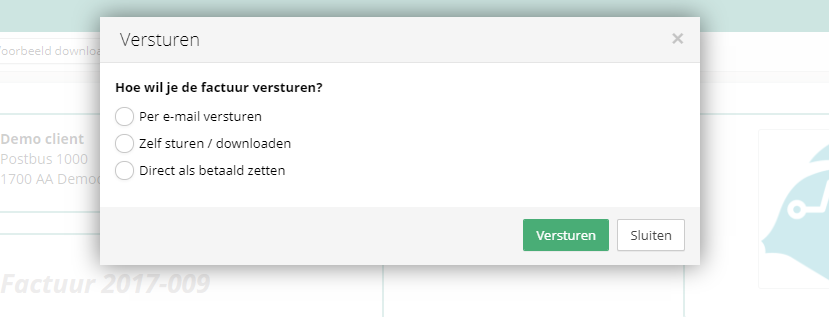
Now that the invoice is ready, you will naturally want to send it directly to the customer. Several options are available for this. To send the invoice, click the "Send" button. You will then see several options for sending the invoice.
Send by email
This option sends the invoice to the customer by email.
The invoice will be included as a PDF attachment to the email message. Because the invoice is sent to the customer's email address, we recommend always checking that the customer details are up to date!
Send/download yourself
With this option, you can send the invoice to the customer yourself; a PDF file of the invoice will be downloaded immediately.
You can email the invoice to the customer manually later using the PDF file. You also have the option of printing the invoice and handing it to the customer.
Mark as paid immediately
Using this option, you can save the invoice as paid immediately. This is useful when the customer has already paid immediately after receiving a service, for example directly after a treatment.