

Add animal(s) via intake
Add animal(s) via intake
Through an intake, you can send a registration form for an animal to a client, which automatically adds the animal to your environment with the information provided by the client.
When creating this intake, you can choose whether the client adds their own animals, or you can specify which animals you want to conduct this intake for. The client can then add up to 10 different animals. If specified when creating the intake, a report can also be added automatically for each animal. For example, you can add a medical history form containing fields that are not available in the standard form.
Animal information - All information relating to the animal. This is the same screen you would see if you added an animal in the usual way.
Report per animal - If selected, a report is added to the intake for each animal. These contain exactly the same fields as those specified in the template. You can only select Add report per animal after adding a previously known animal or setting the intake so that the client adds their own animals; see I can't select Add report per animal for the conditions.
At the end of the intake, the client always has the option to add additional information, should they have any.
Animals belonging to a client who is still completing the intake are, despite the

label, fully available as a normal animal. This means that appointments, reports, and invoices can be created under the animal's name as usual.
Create intake
To create an intake, go to 'Clients' in the menu and open the relevant client. In this overview, you will find a 'Animals' section. In this section, there are two buttons at the top left: 'Add animal' and 'Via intake'. Use the second button for the intake. If this button is not available, it means that the client is still completing another intake, which must first be completed or ended.
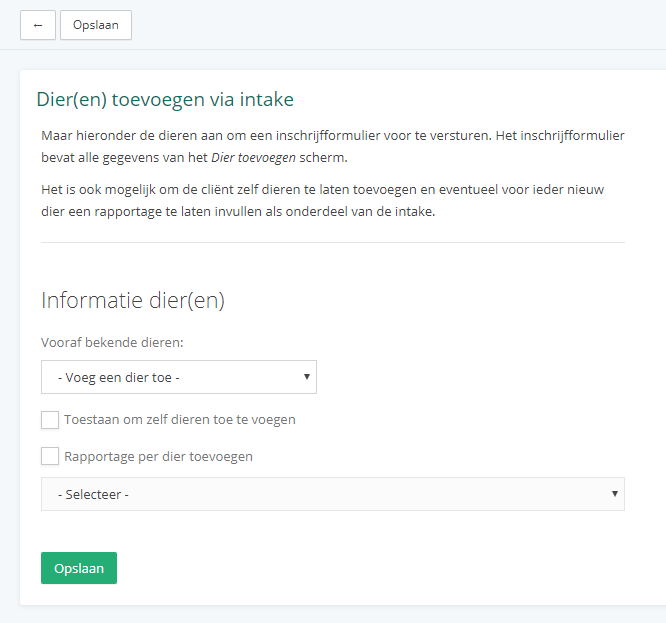
Here you can select everything you need for your intake. You can specify the animals in advance, choose to have the client fill this in themselves, or use a combination of both.
Once everything has been filled in and you have clicked 'Save', a screen will appear where you can choose how you want to send this intake.
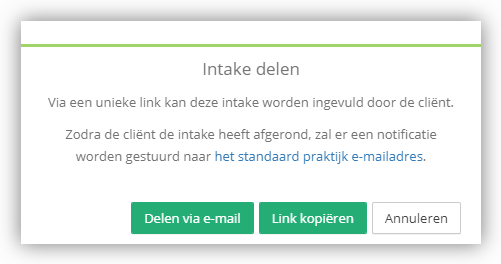
When you share the intake, you receive two important items: a unique link to the intake and a corresponding personal code. The client needs both of these to complete the intake forms.