

Linking your calendar
Linking your calendar
It is easy to link your Vetocare calendar to an external calendar service, such as Google Calendar, Apple Calendar, or Outlook.
To link your calendar, go to "Subscribe" from the calendar.
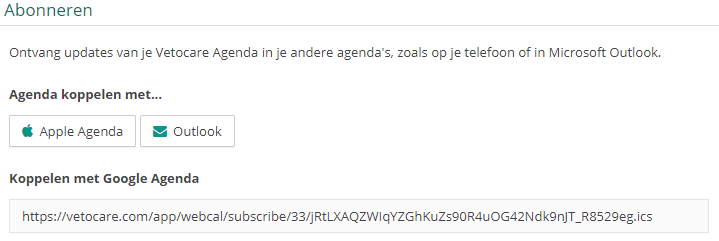
Apple/Outlook
To link your Apple Calendar/Outlook calendar, simply press the button. The calendar service will ask for confirmation to add it; the calendar will be linked once you confirm.
Please note: The buttons for linking the calendar to Apple/Outlook will open the application. To link the calendar successfully, it is very important that you also have the application on the relevant device.
Google Calendar
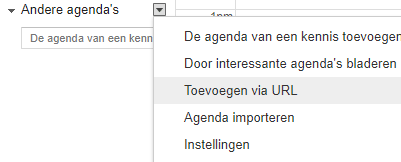
To link Vetocare to Google Calendar, you must use a computer. Copy the link below "Link to Google Calendar" and go to your Google Calendar. In Google Calendar, click the arrow on the right side of the screen next to "Other calendars".
Click "Add by URL" and then "Save calendar"
Please note: Google Calendar does not apply updates immediately, so it may sometimes take a while before changes from Vetocare become visible. This is due to a technical limitation of Google, and there is nothing we can do to change this.