Connecting and using Mollie for payments
Connecting and using Mollie for payments
Connecting Mollie to Vetocare makes it very easy to add a payment link to invoices and reminders, for example. Invoices are often paid immediately or much faster when a payment link is included.
If you do not have a Mollie account yet, create one first via the Mollie website. To receive payments, the account must first be approved. This process is generally quite quick, but it may take several days before you can receive payments.
Connecting a Mollie account
1. Create a Mollie account.
2. Activate the desired payment methods, such as iDEAL.
3. If Mollie asks for a reason for opening the account and, for example, you do not have a website or online store yet, you can enter: Process payments in Vetocare
4. The account is normally activated within 1–2 days. Mollie will notify you by email.
Connecting Mollie to Vetocare
1. Once the Mollie account and payment methods have been activated, go to Settings in Vetocare.
2. Then scroll to Integrations and click Mollie.
3. Read the information carefully regarding the terms and transaction fees.
4. Then click Enable.
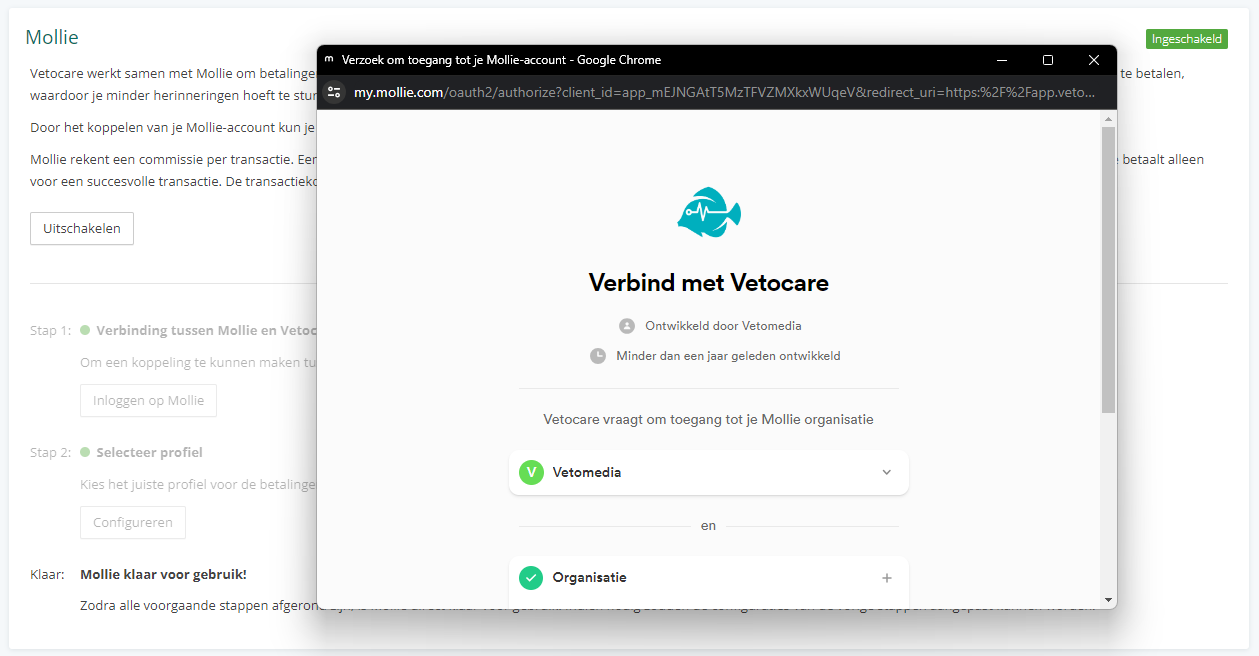
5. Click Log in with Mollie and use the Mollie account to log in. Then give permission to connect to Vetocare and click Connect.
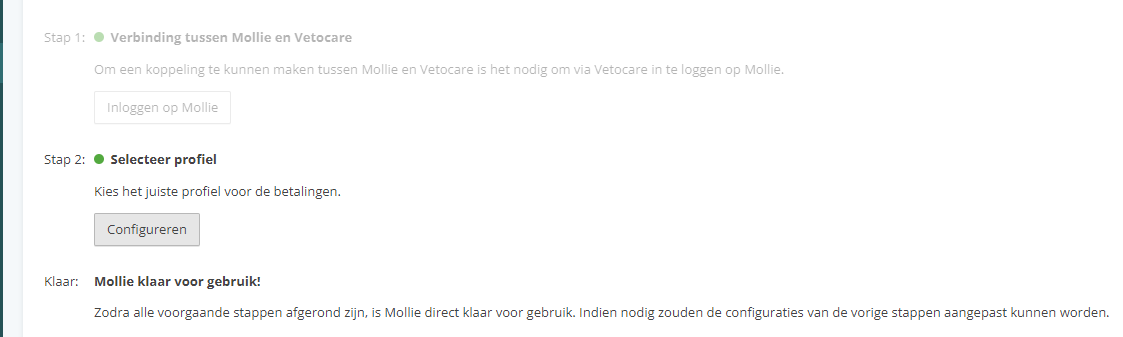
6. Then select the correct profile in the next step. It can sometimes be useful to create multiple profiles within Mollie, for example if you also have a separate online store. You can then create a separate profile for the Vetocare payment links, if desired.
7. Mollie is now ready to use.
Using payment links
Once the connection has been made and everything has been set up correctly, you can use the payment links immediately. There are currently two options for this:
1. Open a payment link via a button.
2. Automatically add a payment link to the standard messages (emails).
For the first option, open an unpaid invoice. Above the invoice, you will see the Payment link button.
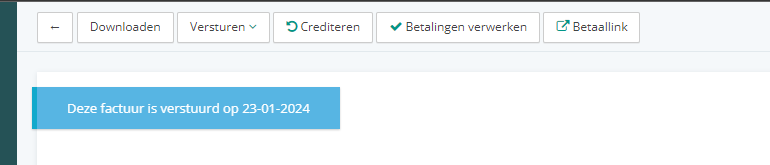
The button opens the payment link directly. This allows a customer to pay immediately, for example via the iDEAL QR code.
There is a minimum amount of 3 euros for processing a payment link and any transaction fees. So if you want to make a test payment, make sure that the total amount is more than 3 euros.
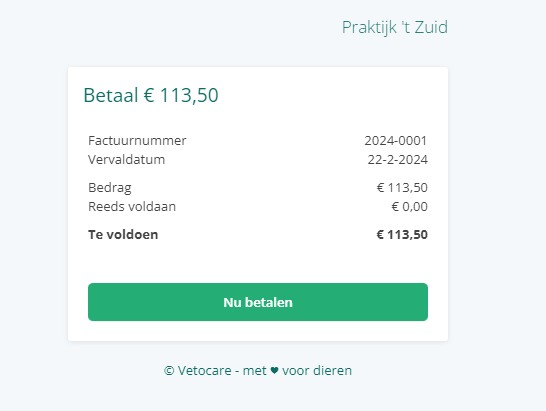
To automatically include a payment link with invoices and reminders, you can edit the relevant standard messages.
To edit the standard messages, go to Settings > Standard messages.
Then first open the standard message for sending the invoice. If desired, add extra text next to the payment link and then click the Payment link button to add the dynamic field.
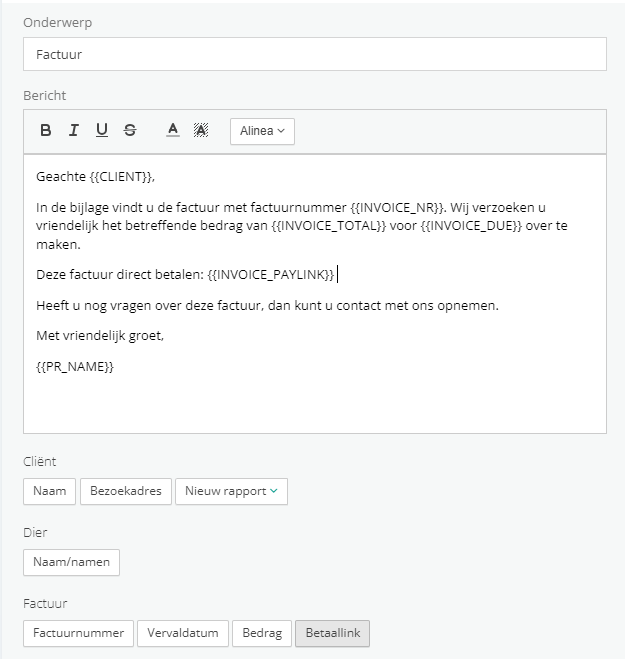
When the message is sent, the field is automatically replaced with the correct payment link.
Repeat this step for the standard messages for the first and second reminders to add the payment link there as well. The payment links work immediately for all invoices, including unpaid invoices from the past.
Successful payments
When the customer clicks the payment button, they see the familiar Mollie environment where the iDEAL payment can be completed. The Mollie payment page can be customized via the settings in Mollie with your own logo and background.
After the payment, the customer is automatically returned to Vetocare and thanked for the payment.
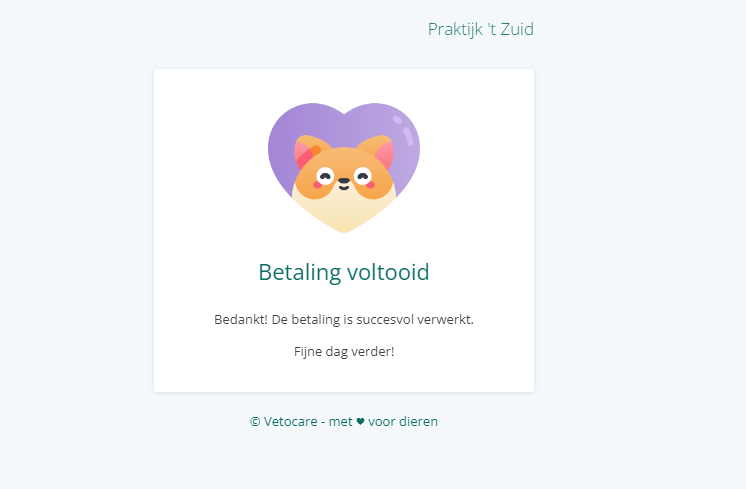
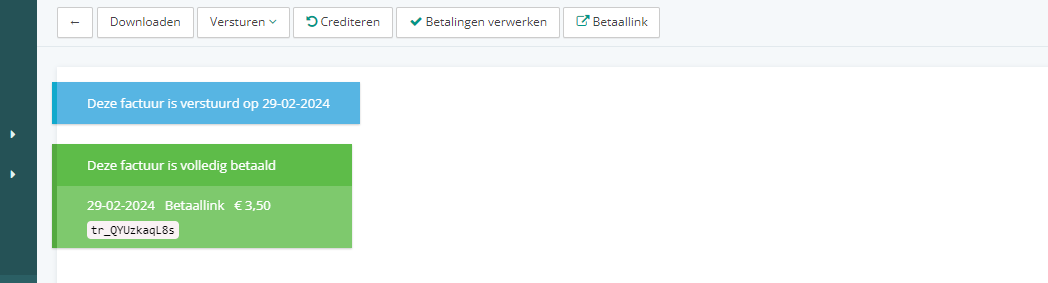
In Vetocare itself, the invoice is automatically marked as paid, and the payment is recorded on the invoice with the payment reference.